Office Data Connection files (ODC files) are a great feature in Excel 2007. Basically this technology allows you to store connection information (server name, authentication, database name, cube, ...) in a file. This file can be placed on a central file share or in a Sharepoint library. In stead of defining new connection info in every single Excel file, you just point to the "central" ODC file. If something changes, e.g. the cube is moved to another server, you simple update the ODC file and everyone is redirected the new server automatically.
At least this wil work if you specied "Always attempt to use this file to refresh data" the during the initial creation of the ODC file.
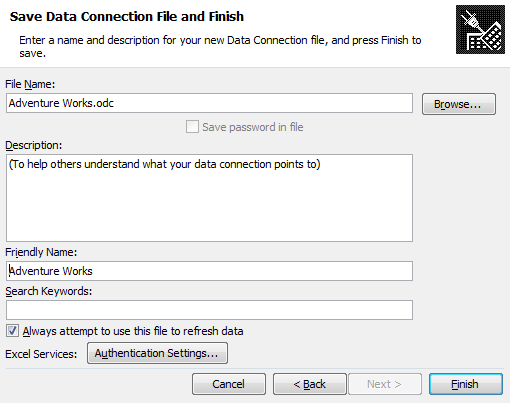
If you didn't check the check box then you and want to enforce the link afterwards you might be tempted to check the "Always use connection file" checkpoint in the connection properties (Click Connections in Data ribbon, Properties, Definition)
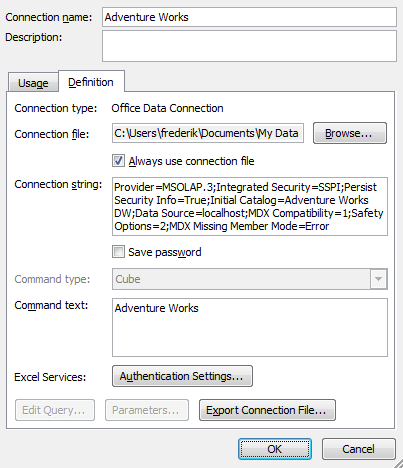
However if you check "Always use the connection file" you will get following error message:
The connection in this workbook will no longer be identical to the connection defined in the external file located at ....
The link to that external file will also be removed.
Do you want to proceed with the changes to the connection in this workbook?
Excel will break the link between the "Excel internal" connection and the ODC file. The UI seems to suggest that you can fix the link. At least that's what I thought. The key point is that the option "Always use the connection file" is not stored in Excel but in the ODC file.
If you want to fix the link between Excel and the ODC file you can manually update the ODC file by adding the following line
<odc:AlwaysUseConnectionFile/>
Make sure to add it just before the </odc:Connection> line.

After you saved the ODC file go back to Excel. Click Connections in the Data ribbon, Properties, Definition. Click Browse and point to the updated ODC file. After you click OK you will notice that the "Always use connection file" checkbox is now checked. And you no longer receive the error message.
Took me quite some time recently to find out, so I wanted to share this one.

8 comments:
Thank you. I wouldn't have thought about this.
This was driving me crazy. Thanks for the info.
Cheers mate!
Hi,
In know it's an old post, but i've found a problem related to it... hope you can help.
If I create a new ODC (analysis services connection), Excel 2007 shows the measures as formatted in the cube properties. The ODC "connection properties" dialog shows, under the Usage tab, all the "OLAP Server Formatting" ticks are CHECKED. OK so far.
Then I upload the ODC to a sharepoint data connection library.
The problem is, when I open the ODC from sharepoint to an Excel worksheet, measures are shown without format. If, again, I open the ODC's "connection properties" dialog, all the "OLAP Server Formatting" ticks are UNCHECKED. If I recheck the "Number Format", everything works fine again...
Do somebody know why are those checks changed?? Is it a property of the ODC, or of the Excel file?? I've googled it a lot.. with no results...
Thanks!
Thank you very much for this post. It has saved me hours if not days of frustration.
Hello, I am getting "The connection in this workbook will no longer be identical to the connection defined in the external file located at .... The link to that external file will also be removed. Do you want to proceed with the changes to the connection in this workbook?". I want to try to manually update the ODC file by inserting just before the line. However, I don't know how to find the ODC file, and how to update the ODC file if I could find it. This is all a new area to me. I am trying to connect from Excel 2007 to Sage ACT! 2013 (the CRM system; it uses an SQL server database) on my LAN. When I test the connection on the Connection tab of the Data Link Properties of the Excel Data Connection Wizard, that is successful. I have tried checking "Always attempt to use this file to refresh data" on the 'Save Data Connection File and Finish' but I still get the "The connection in this workbook will no longer be identical to the connection defined in the external file located at ...." message. So I want to try inserting to try to fix my connection. If anyone knows how to do this and can help I would be grateful to hear from you. Thanks in advance!
The line I am trying to insert (as I was trying to say in my post a couple minutes ago) is 'odc:AlwaysUseConnectionFile'. Thanks again
Exactly what I was looking for, thanks!
Post a Comment